Spreadsheet interactions for complex Salesforce work.
Designing a workspace where teams can configure, edit and review CRM data at scale.
Role
UI/UX designer
Scope
End-to-end product design
Industry
Enterprise software / CRM
Product
B2B SaaS
Platform
Salesforce app, Chrome and Edge
Status
Live commercial product
Overview
A familiar interface for complex business operations.
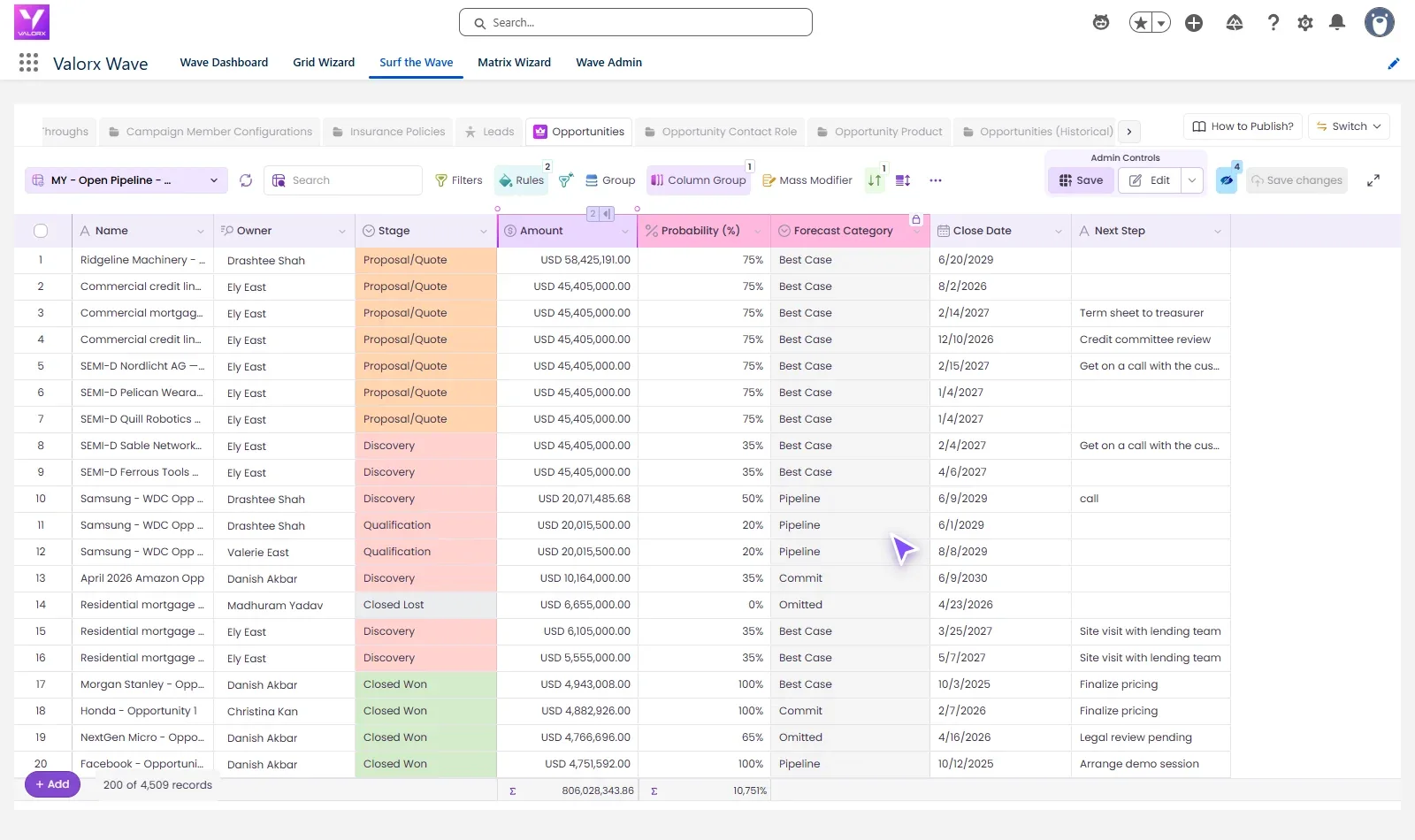
Revenue operations teams, account managers and Salesforce admins use Wave to work across many records at once. The same grid can support updating a pipeline, reconciling data or preparing a forecast review.
Spreadsheet conventions give teams a starting point they already know. Salesforce remains the source of record data, field types and permissions.
Product impact
Faster mass edits vs. native Salesforce
5–10×
Swoop customer story
Shorter monthly forecast cycle
75%
CMC customer story
Active grids from 2023 to 2026
2 → 65
NVIDIA customer story
Active grids from 2024 to 2026
7 → 27
Qualcomm customer story
Customer outcomes reported by Valorx for deployments of Wave.
My contribution
I owned the end-to-end UI/UX design work for Wave.
At Konexta Agency, I worked with Valorx’s product and engineering teams and the agency design team. I mapped flows, explored interface alternatives and extended existing components. Handoff covered empty, loading, error and partial-success states.
My work included Grid Wizard and permissions, separating personal configurations from shared grids, and making backup and restore decisions clear at the point of conflict.
The challenge
Make dense data manageable.
Editing across Salesforce records can turn a single operation into several page visits. A grid reduces that movement, but it also puts many fields, types and actions on screen together.
Familiar selection and editing need to work within CRM permissions and validation. The interface has to make both the scope of a change and the state of the data clear before a team relies on it.
Design objectives
Efficiency
Keep repeated changes in the grid so teams can update a set of records together.
Clarity
Give dense datasets a visible structure through field labels, grouping and filters.
Control
Keep the scope of an edit and its save outcome visible.
Flexibility
Let people adapt a working view within shared access rules.
Consistency
Use the same cues for selecting, editing and confirming across workflows.
Scalability
Give admins a clear place for advanced settings so routine work stays approachable.
Product architecture
Two entry points into Salesforce data.
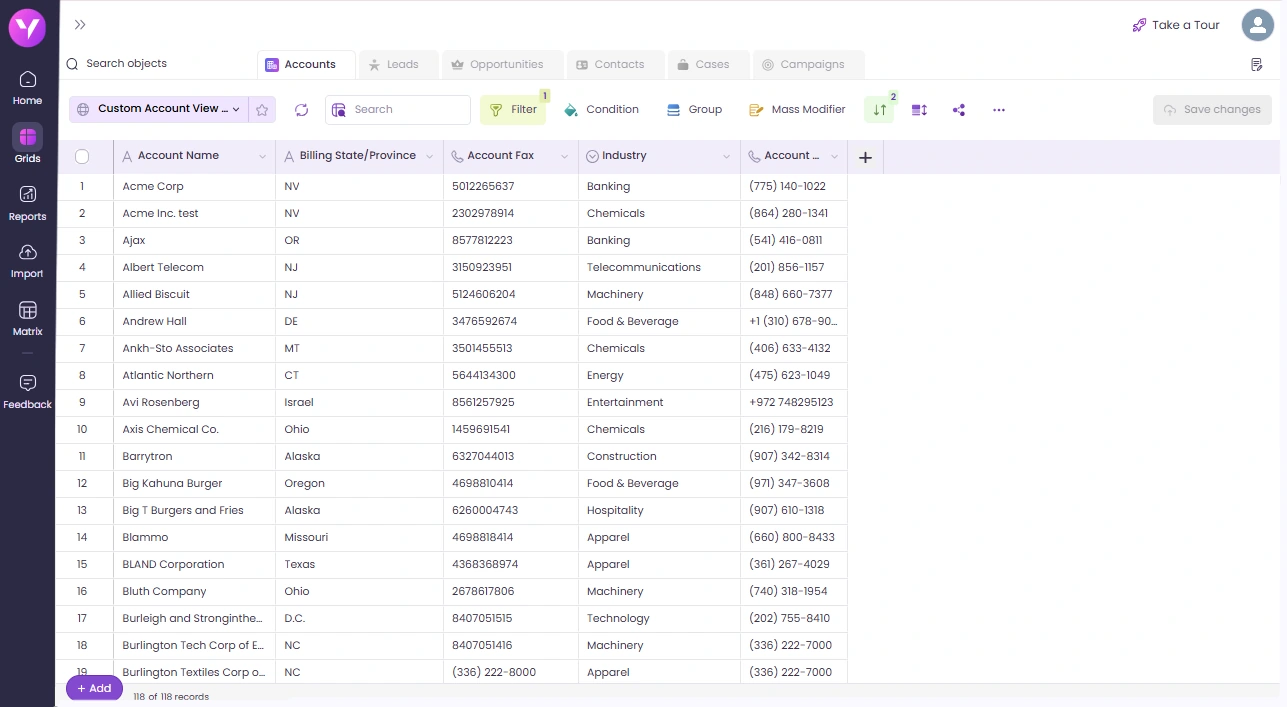
Embedded brings grids into Salesforce pages. The Browser Extension gives teams a separate browser workspace. Both give users record-editing tools and reserve configuration decisions for the relevant permissions and edition.
Salesforce objects, records and field access
Wave Embedded
Managed Salesforce application. Grids can be published to Salesforce pages.
Configure
Designers use Grid Wizard to set fields, filters, actions and access.
Work with data
Standard users open published grids and, where enabled, create personal copies in the Grid Picker.
Wave Browser Extension
Chrome and Edge extension. Users sign in with Salesforce and work in a separate browser workspace.
Open Salesforce views or reports from the grid workspace, or use saved custom views in My Grids.
Core workflow
From a working set to a confirmed update.
A representative record update across Wave’s documentation. The illustrated steps pair a shared-grid starting point with editing, error feedback and save states.
01Access data
Choose a relevant grid. In Embedded, the picker keeps personal copies under the shared parent.
02Organize records
Use filters and sorting to define the working set before selecting cells.
03Edit in bulk
Select a range and edit it in place or apply a shared field value.
04Validate changes
Compare originals with pending values. Revert individual edits when the draft needs a correction.
05Review and save
Commit the remaining changes. The save summary shows where Salesforce accepted the update or returned an error.
Design decisions
A spreadsheet model, with CRM constraints.
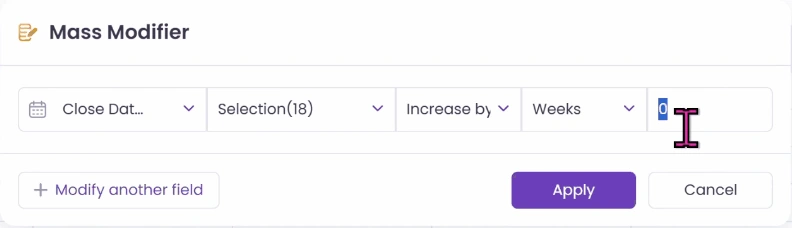
A range selection can replace several record visits, but it has to remain clear which records and which field the next operation affects. Wave supports inline editing, copy and paste, drag-fill and a Mass Modifier above the working grid.
Familiar commands stay close to the cells. The modifier makes the field, operation and value explicit before applying the edit across a range.
Mass Modifier updates the selected records in one operation.
One shared grid, room for personal work.
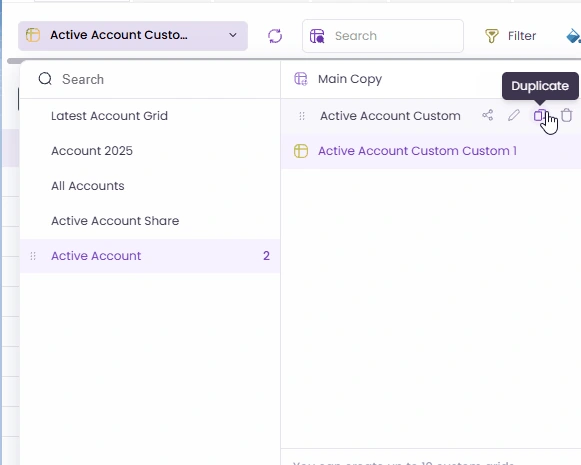
A team can depend on a Global Grid while individual users need different views. I separated the personal copy from the shared original and designed distinct states for editing, sharing and deleting it.
Embedded places the custom copy under its parent grid. Creation and sharing depend on permissions. I worked through the limit of ten copies and the separate confirmation needed when deleting a shared grid would affect dependent copies.
A permitted edit creates a personal grid that appears under the Global Grid.
Keep filter logic near the data.
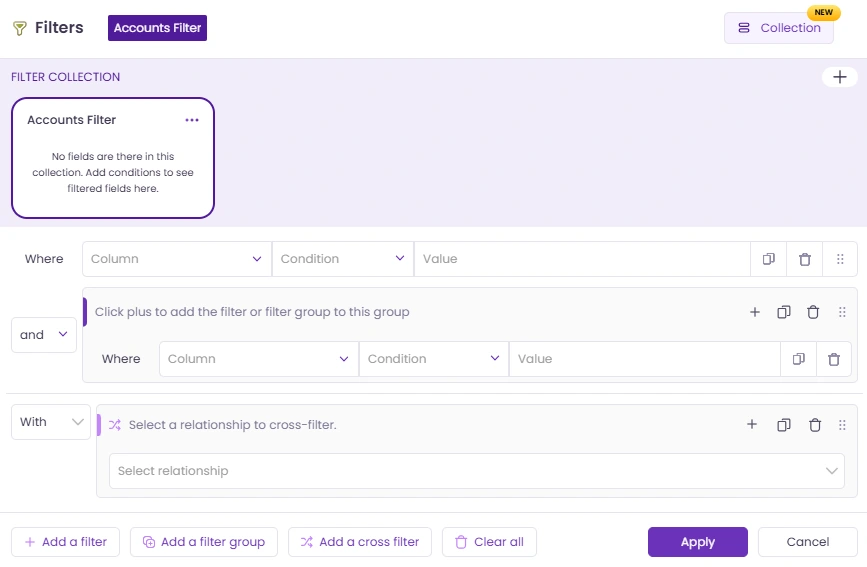
A team often needs a smaller set of records before it can act on them. Wave puts search and sort at the grid level and expands the filter builder for multiple conditions and groups.
Showing the field, operator and value together helps users verify the logic. An explicit Apply action keeps the current rows in view while the conditions are still being assembled.
12
Condition group. Related criteria remain visible together.
Apply. The working set updates when the user commits the filter.
Make the consequences of Save visible.
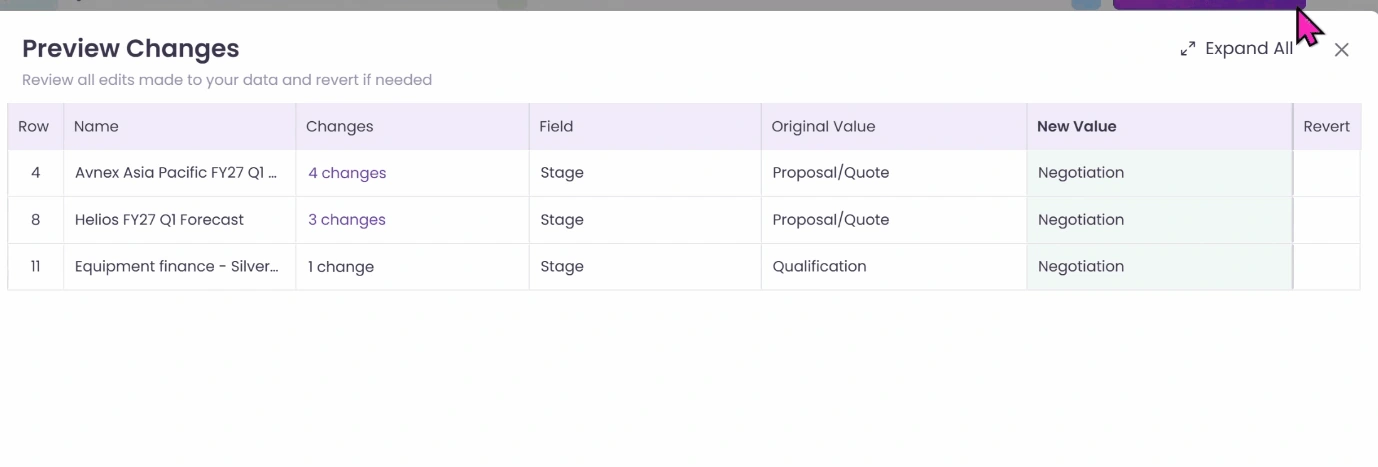
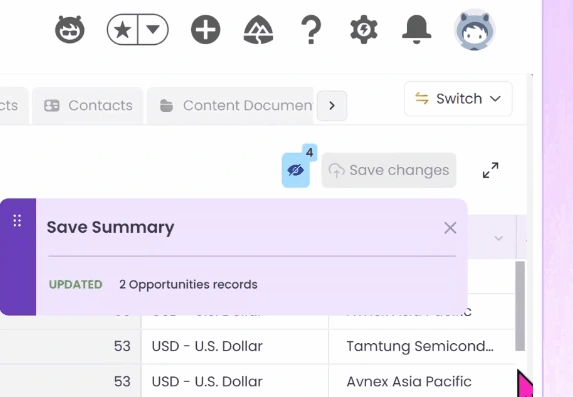
Preview Changes makes the difference between the original and pending value visible. Users can revert specific pending edits there. After Save, the summary and cell-level feedback show which updates Salesforce accepted.
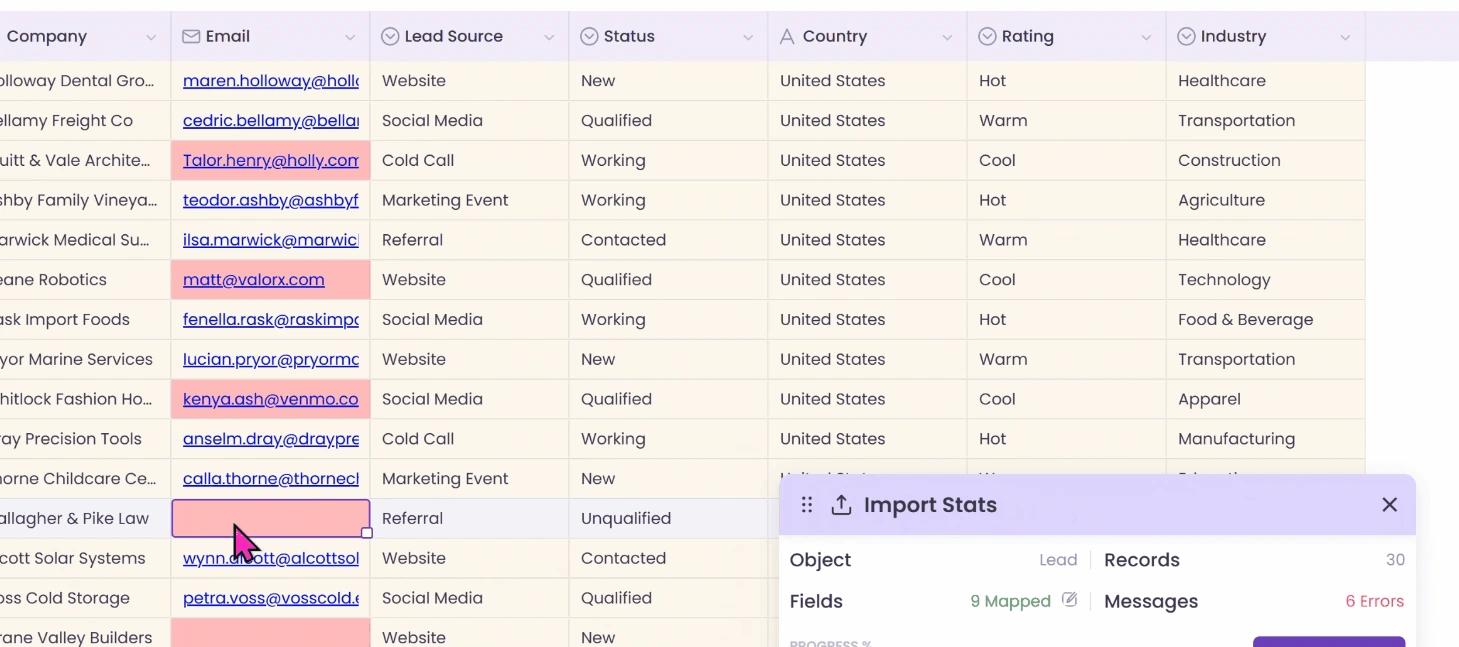
Some restricted values surface after Salesforce responds. Smart Import has a separate draft stage for mapping fields and resolving visible errors before committing the import.
Compare pending changes, revert one item, then save the remaining edits.
Keep the restore decision on the affected grid.
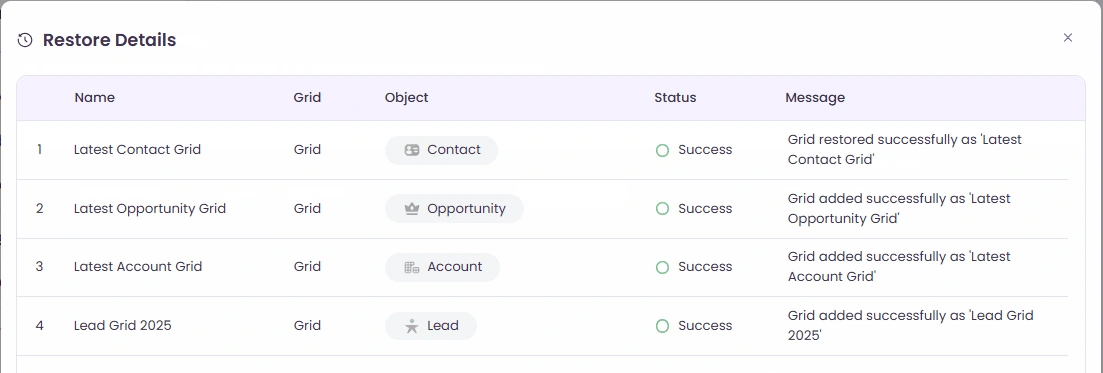
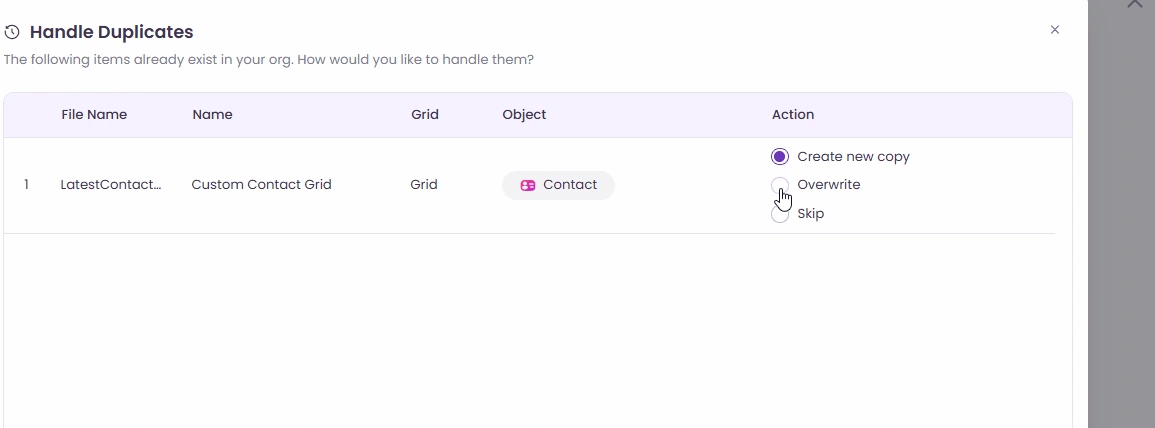
A batch restore can complete some items and still need a decision on a duplicate. I separated unresolved items from the results summary and kept Create new copy, Overwrite and Skip on the affected row.
Backup & Restore brings back grid configuration, including fields, filters and related lists. The pending-changes revert applies to unsaved cell edits. Each operation has a different scope and result to communicate.
The restore recording shows a duplicate decision and the results by grid.
Show what a configuration will change.
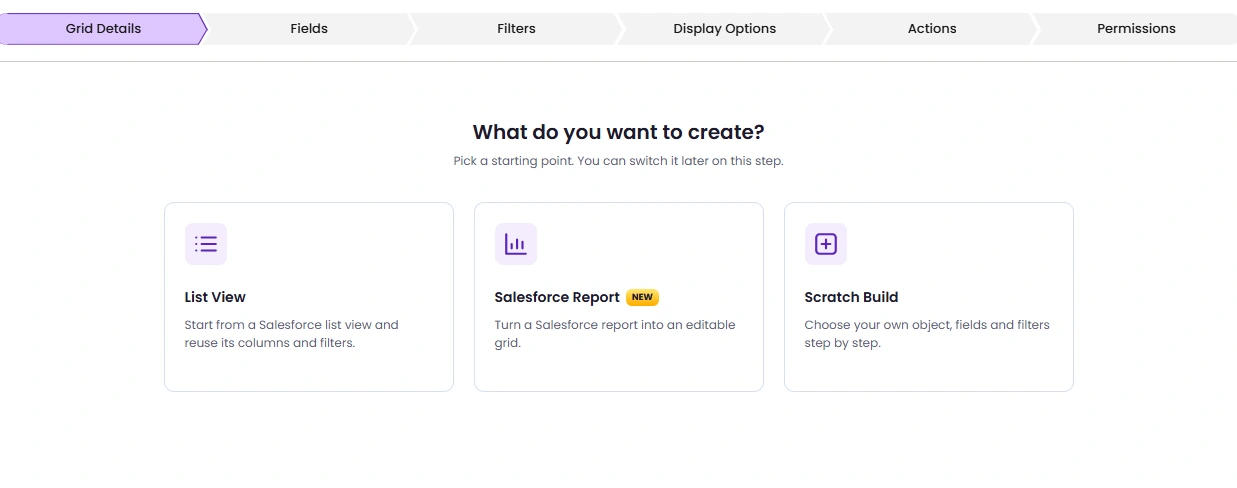
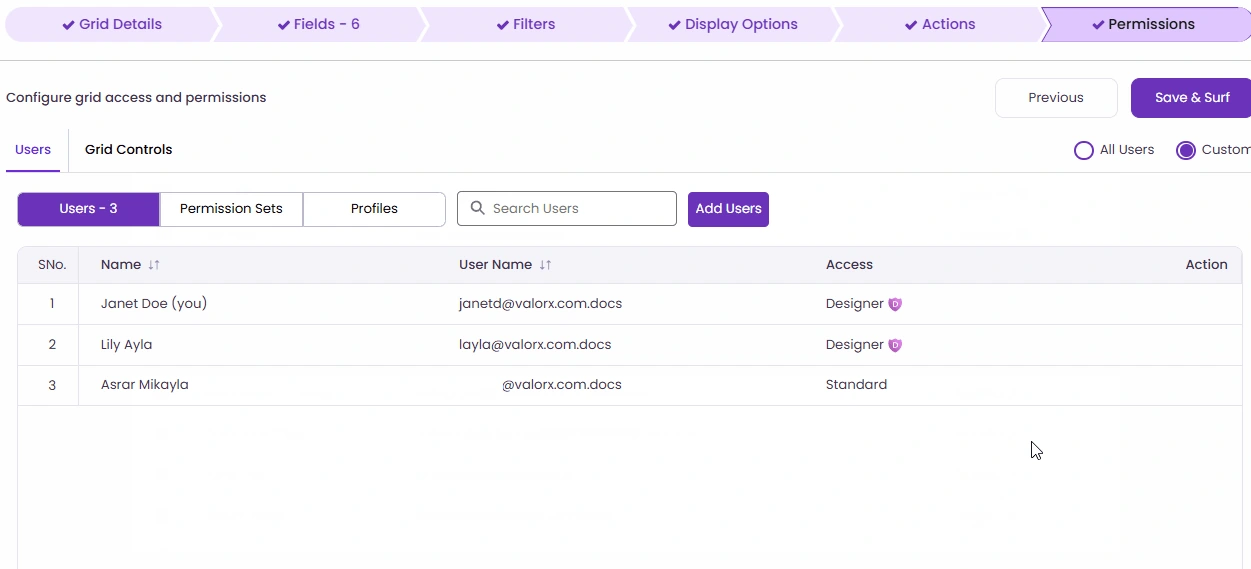
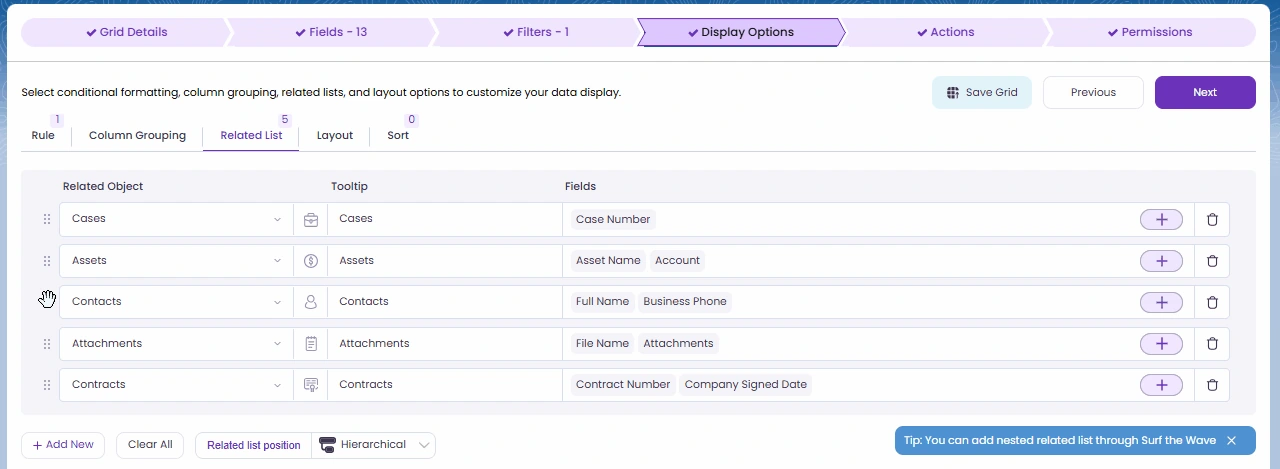
Grid Wizard brings together fields, filters, related lists and permissions. I explored a preview beneath the configuration controls so designers could see what a choice would change while staying in the current step.
Permissions use a dedicated step. Grouping users, permission sets and profiles keeps publishing decisions in one place and leaves the runtime grid focused on working with records.
Visual language
Let emphasis carry meaning in a dense grid.
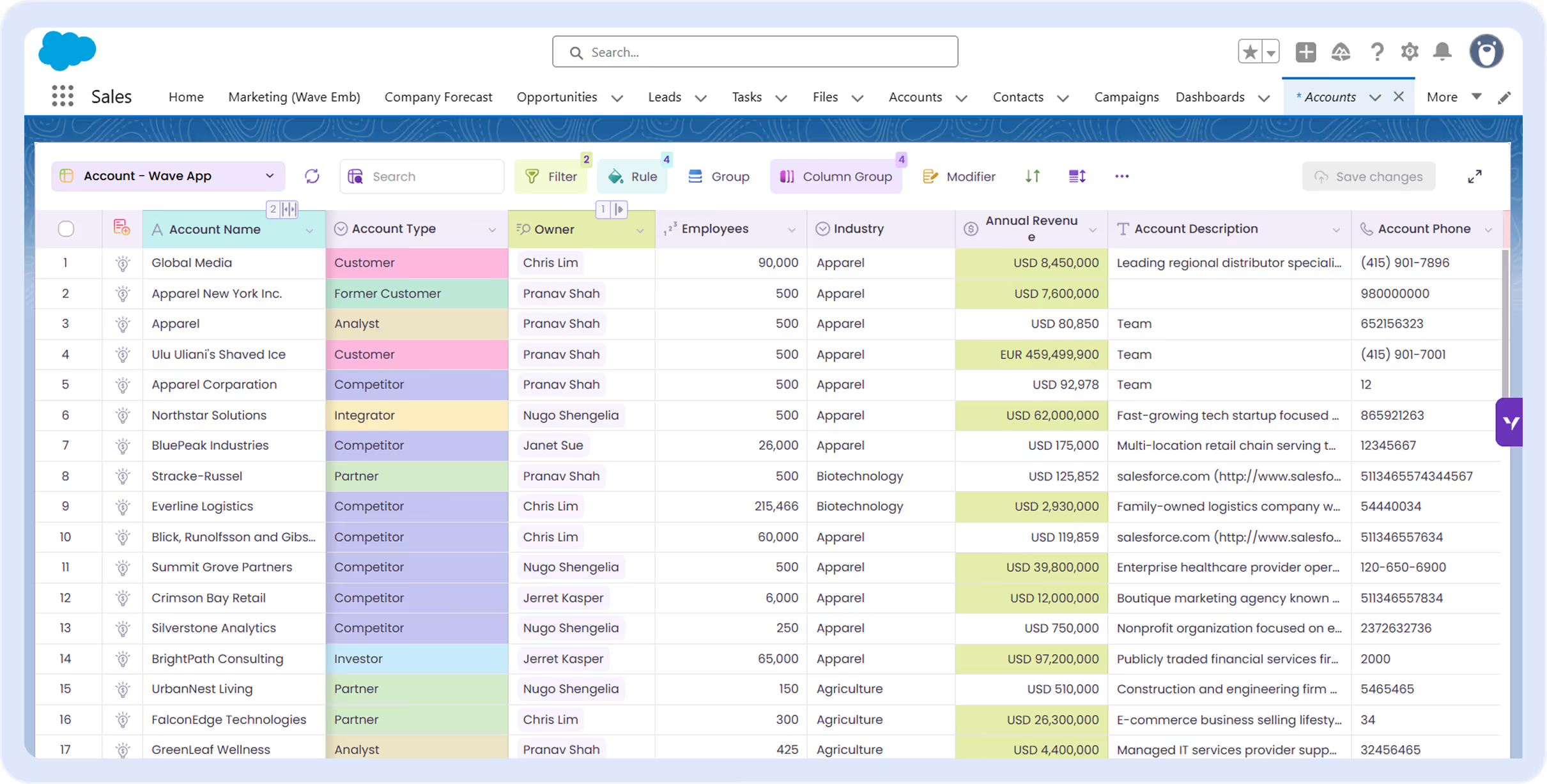
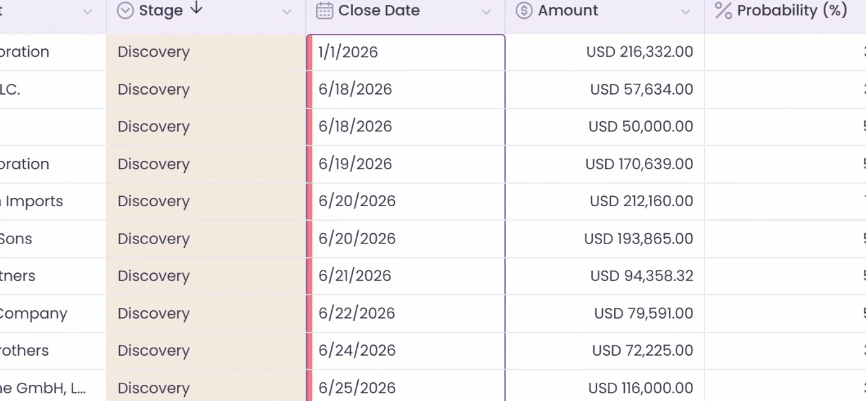
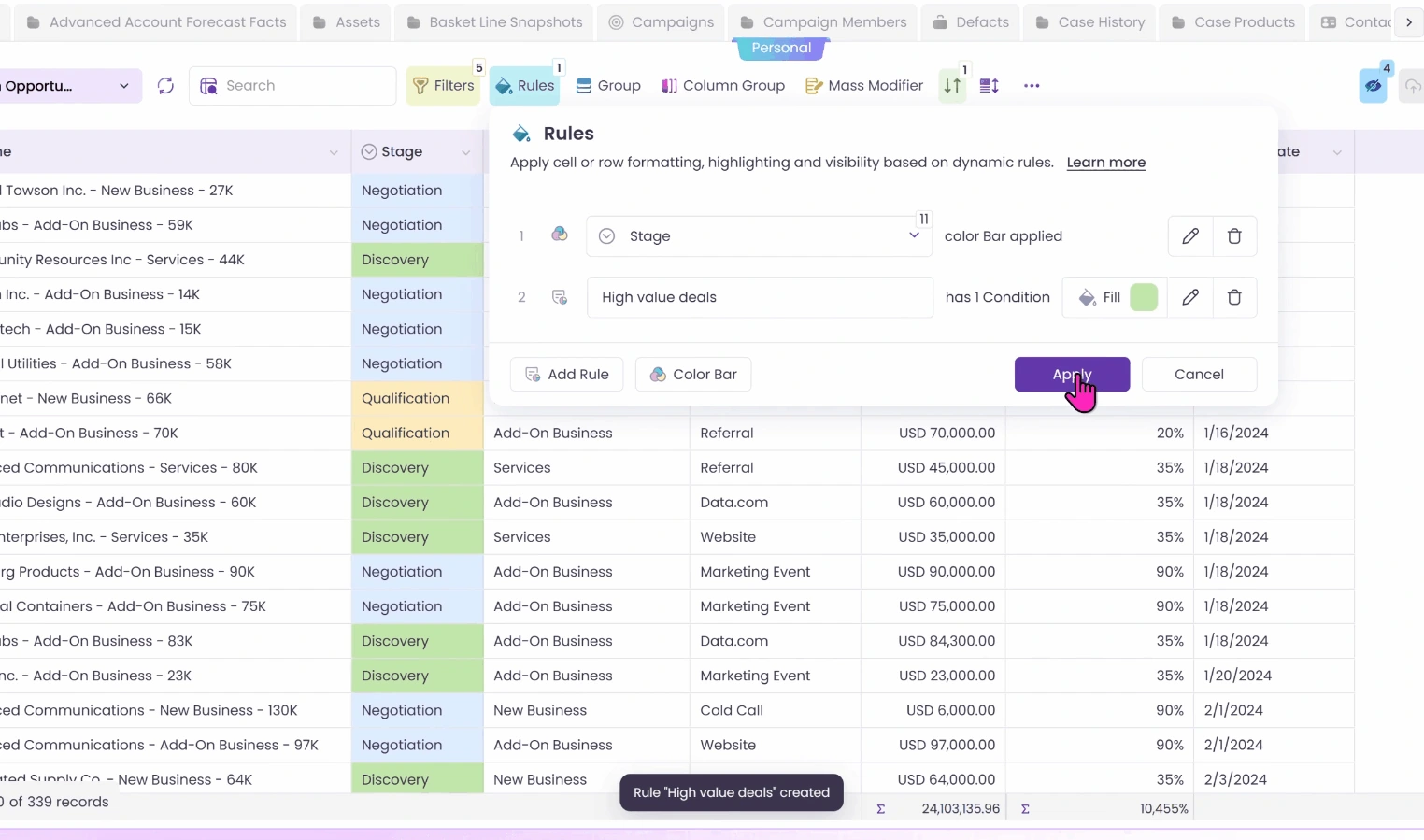
Neutral rows and fine dividers keep long tables scannable. Purple marks controls and selected states in the illustrated release. Formatting colors take their meaning from the configured rule, while failed values can be marked at the cell.
Keeping column labels close to their values gives formatted stages, dates and amounts a stable place to read.
12
Rule builder. The criteria stay next to a live grid.
Formatted cells. Color is applied where the relevant value is read.
Design system
Repeat the controls people use to understand scope.
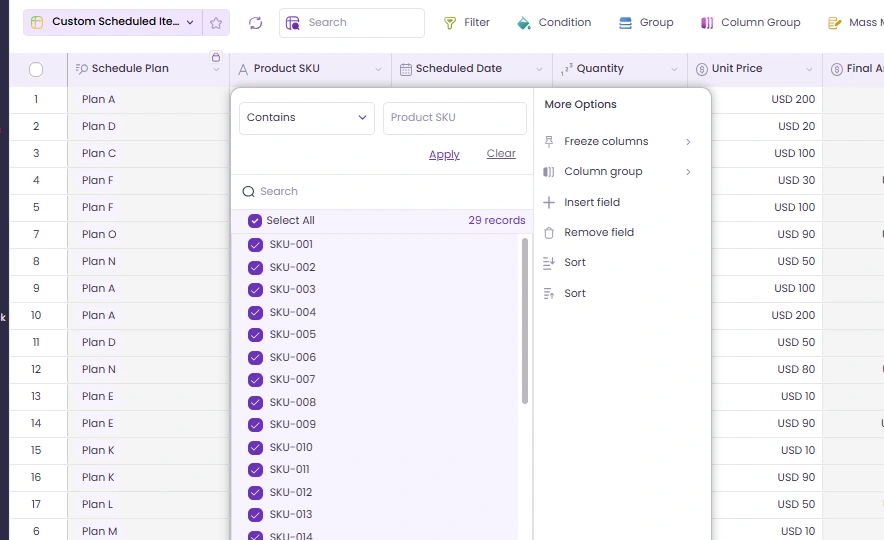
I extended existing Wave components for configuration and recovery states. These published examples show how the toolbar, field menu and per-item decision patterns work at different levels of the interface.
12
Grid-level commands. The toolbar holds controls for filtering, ordering and editing the working set.
Column context. Headers connect the controls to the fields people scan and edit.
Column menu · actions near the affected field
Restore dialog · choices attached to the affected item
Design craft
Keep errors attached to the cell that needs attention.
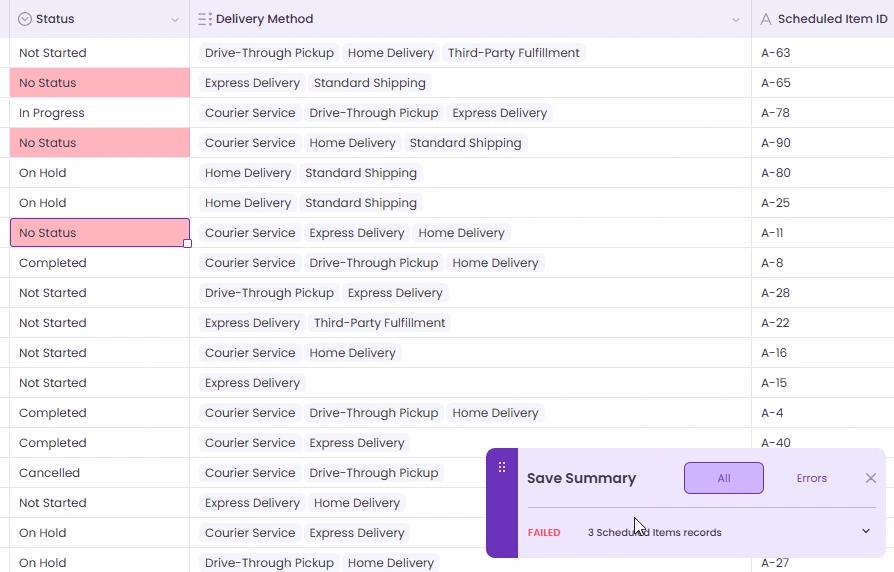
When Salesforce rejects a restricted picklist value, Wave highlights the cell and records the failure in the save summary. A reviewer can see both where to edit and what happened to the batch.
Keeping selection, edit and error states visually distinct matters when all three can appear in the same grid.
A restricted value is rejected after Save. The grid highlights the affected cells.
Outcome
A released workspace for enterprise CRM operations.
Wave brings editing, review and configuration into a spreadsheet-like workflow on top of Salesforce. The documented customer deployments show its use in pipeline operations, forecasting and field operations.
My work focused on the decisions teams need to make when publishing a grid, separating a personal copy or recovering a setup after a conflict.